TrueFoundry provides an enterprise-ready AI Gateway (opens in a new tab) which can integrate with applications like Methodius AI and provides governance and observability for your AI Applications. TrueFoundry AI Gateway serves as a unified interface for LLM access, providing:
- Unified API Access: Connect to 250+ LLMs (OpenAI, Claude, Gemini, Groq, Mistral) through one API
- Low Latency: Sub-3ms internal latency with intelligent routing and load balancing
- Enterprise Security: SOC 2, HIPAA, GDPR compliance with RBAC and audit logging
- Quota and cost management: Token-based quotas, rate limiting, and comprehensive usage tracking
- Observability: Full request/response logging, metrics, and traces with customizable retention
Prerequisites
Before integrating Methodius AI with TrueFoundry, ensure you have:
- TrueFoundry Account: Create a Truefoundry account (opens in a new tab) and follow our Quick Start Guide (opens in a new tab)
- Methodius AI Installation: Set up Methodius AI using either the [Desktop application](https://Methodius (opens in a new tab) AI.com/download) or Docker deployment (opens in a new tab)
Integration Steps
This guide assumes you have Methodius AI installed and running, and have obtained your TrueFoundry AI Gateway base URL and authentication token.
Step 1: Access Methodius AI LLM Settings
-
Launch your Methodius AI application (Desktop or Docker).
-
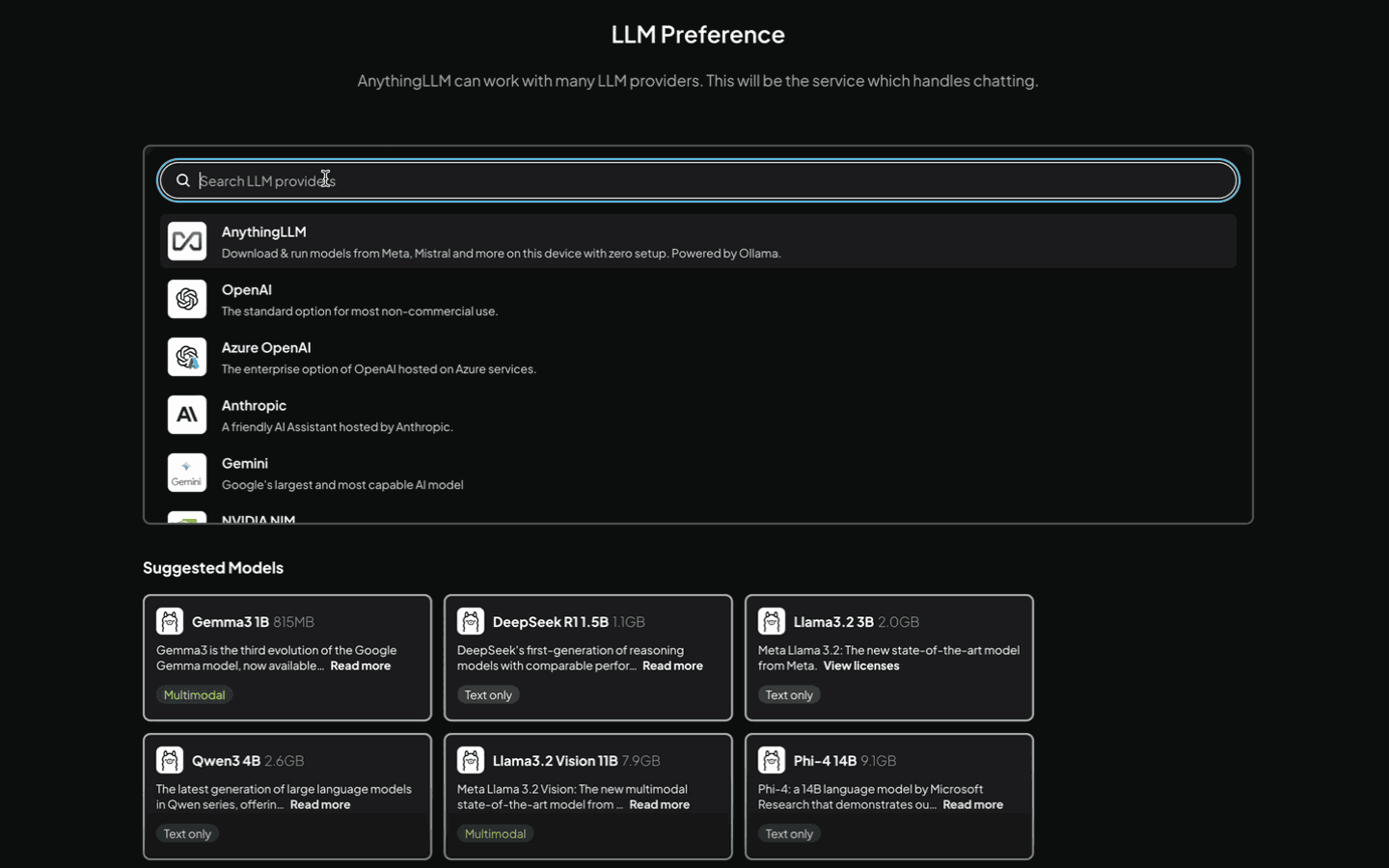
Navigate to Settings and go to LLM Preference:
Step 3: Configure Generic OpenAI Provider
-
In the LLM provider search box, type "Generic OpenAI" and select it from the available options.
-
Configure the TrueFoundry connection with the following settings:
- Base URL: Enter your TrueFoundry Gateway base URL (e.g.,
https://internal.devtest.truefoundry.tech/api/llm/api/inference/openai) - API Key: Enter your TrueFoundry Personal Access Token
- Chat Model Name: Enter the model name from the unified code snippet (e.g.,
openai-main/gpt-4o) - Token Context Window: Set based on your model's limits (e.g., 16000, 128000)
- Max Tokens: Configure according to your needs (e.g., 1024, 2048)
- Base URL: Enter your TrueFoundry Gateway base URL (e.g.,
Step 4: Get Configuration from TrueFoundry
Get the api key, base URL and model name from the unified code snippet in our playground (ensure you use the same model name as written):
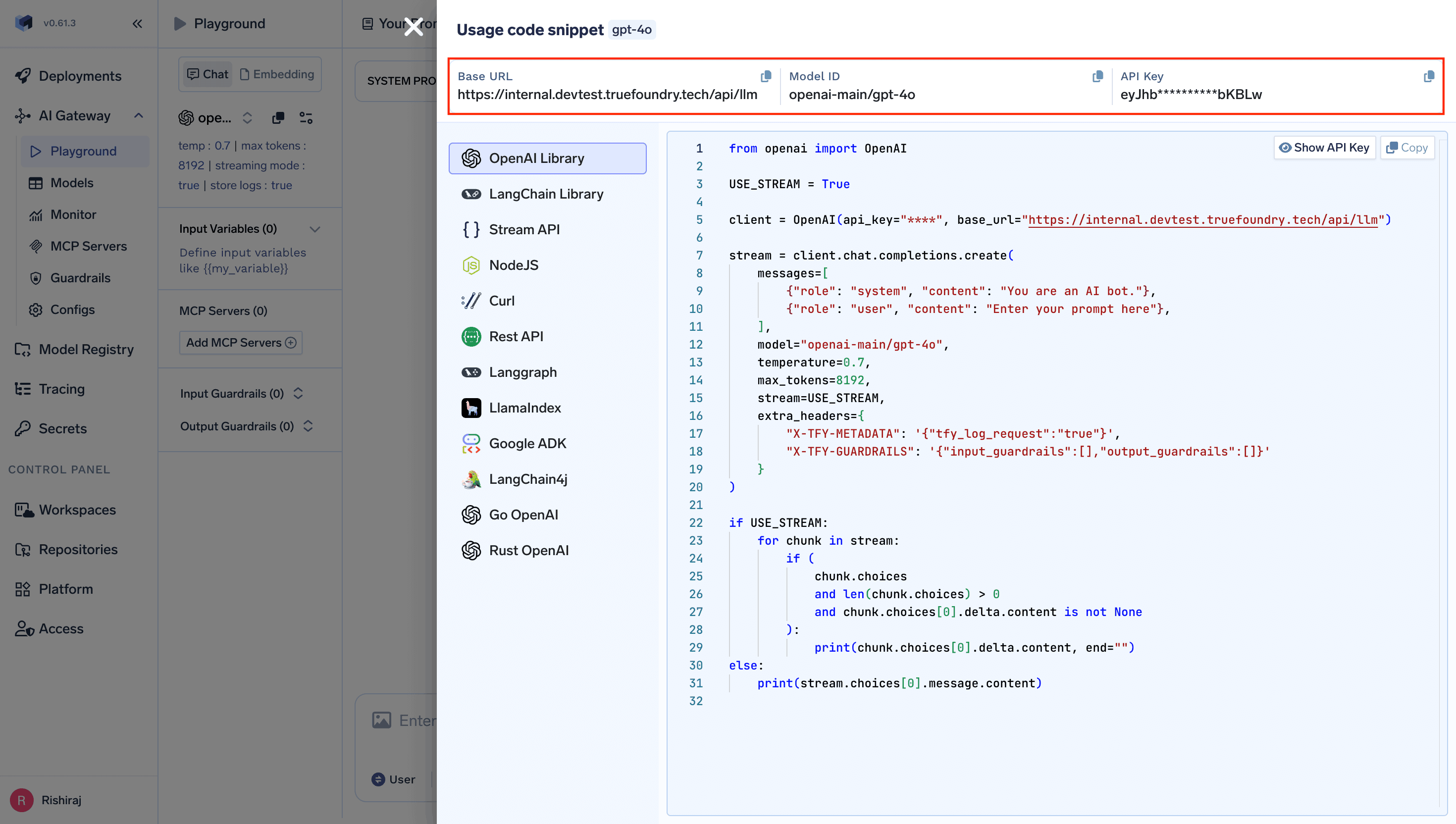
Copy the api key, base URL and model ID and paste them into Methodius AI's configuration fields.
Step 5: Test Your Integration
-
Save your configuration in Methodius AI.
-
Create a new workspace or open an existing one to test the integration:

- Send a test message to verify that Methodius AI is successfully communicating with TrueFoundry's AI Gateway.
Your Methodius AI application is now integrated with TrueFoundry's AI Gateway and ready for AI chat, RAG, and agent operations.